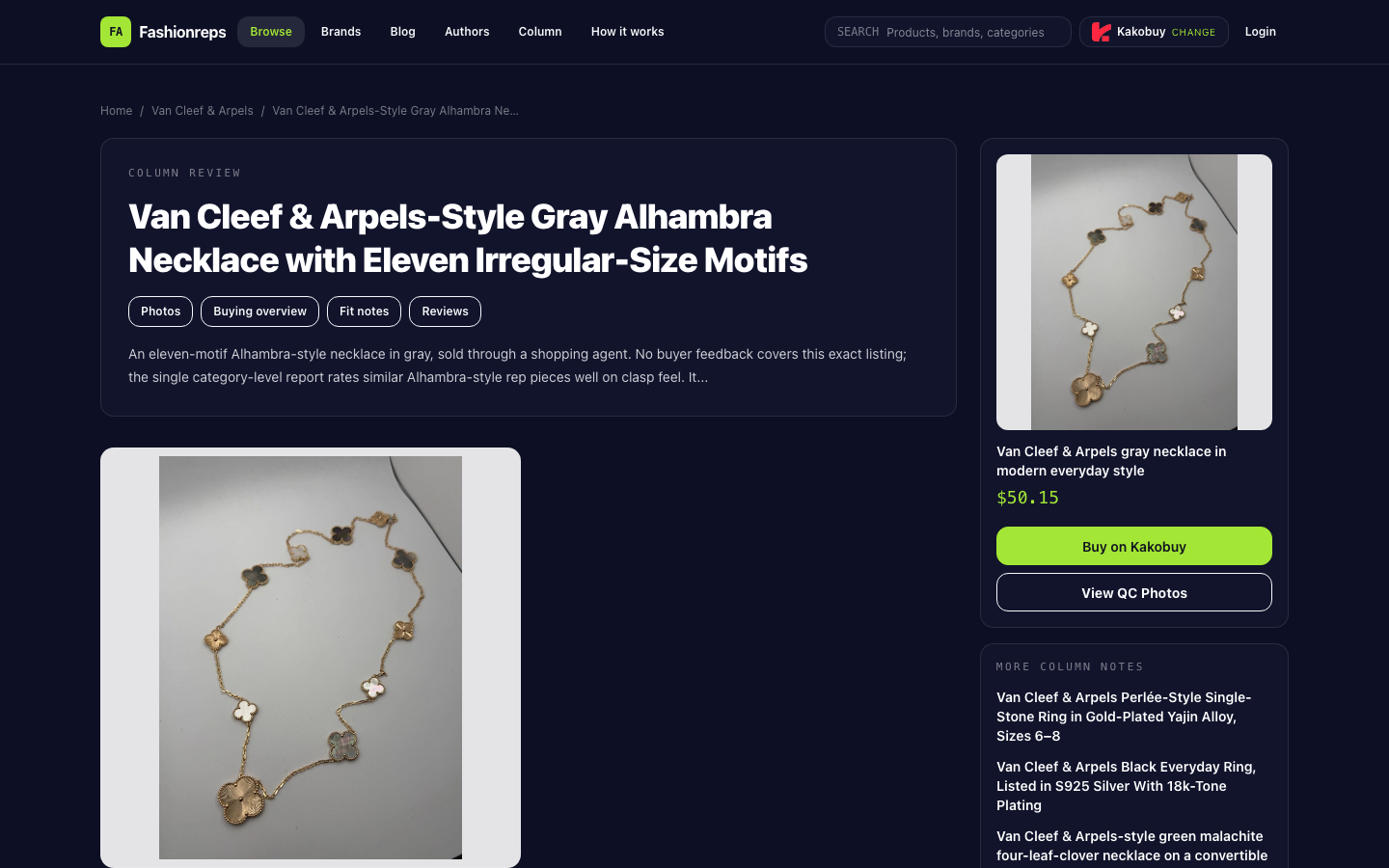
First, Determine the Recording Target
When filtering van cleef arpels jewelry on mobile and filling it back into Google Sheets, the key is not to copy every product you see into the spreadsheet, but to ensure that each row can trace back to the corresponding catalog page while preserving enough variant context. This way, when reviewing later, you can determine whether a particular color, style, or size option actually belongs to the current link.
The current catalog page shows brand entry, search, product detail pages, and purchase platform entry. The product page example shows the title, reference price, purchase platform, and style description, but it does not mean that all products provide complete color, size, material, or inventory information. Therefore, the spreadsheet should distinguish between confirmed fields and fields to be confirmed, and cannot infer that a product does not have a certain option just because a field is blank.

What to Record First When Filtering on Mobile
After opening the catalog, first use search or brand entry to locate van cleef arpels related pages. When you see a candidate product, do not immediately copy only the title or price. It is recommended to record in the following order:
- Product title, keeping the brand, style, and main description from the page.
- The color, style, or other variant text displayed on the current page; if the page does not show it, fill in "Page not specified".
- The product detail page link, copy it and temporarily do not modify parameters or shorten the path.
- The reference price displayed on the page, record the currency unit if available.
- The query time, to facilitate later judgment on whether the spreadsheet content needs to be rechecked.
- Remarks, such as "Need to confirm chain length", "Variant not reflected in title", or "Link redirects".
If the product page only states that there are multiple patterns, colors, or irregular sizes, but does not provide specific dimensions, chain length, or material, these should be marked as unknown. For example, the gray Alhambra-style necklace in the source page states that there are eleven irregular-size motifs, but does not provide chain length, drop length, or motif size. In this case, you can record the number of motifs and color as stated on the page, but should not fill in inferred wearing dimensions.
Recommended Google Sheets Fields
You can first create a header row, then fill in each item as you see it on mobile. The fields should not be too many, otherwise the key points of verification will be buried.
| Field | How to Fill | Verification Focus |
|---|---|---|
| Brand Keyword | van cleef arpels | Keep the keyword used for this filter |
| Product Title | Copy the detail page title | Matches the title when opening the link |
| Color or Style | Copy the options explicitly shown on the page | If not shown, mark as "Page not specified" |
| Detail Page Link | Paste the original link | Whether it still points to the same product |
| Reference Price | Only record the value shown on the page | Do not add shipping, service fees, or inventory |
| Query Time | Record the time of this view | Facilitates later verification |
| Verification Status | Matched, To be confirmed, or Excluded | Control which rows enter the candidate list |
| Remarks | Write missing fields or redirect situations | Preserve variant context |
After Copying the Link, Do a Link-Back Verification
After copying the link on mobile, first reopen it in a new browser tab or the current page. Do not just check if the address bar has content, but also verify the following three items:
- Does the page title match the product title you recorded?
- Are the color, style, or pattern descriptions on the page still consistent with your record?
- Is the page still the same product detail page, not a brand catalog, search result, or another product?
If the link redirects to a brand entry, search page, or another product page, mark that row as "To be confirmed", not directly include it in candidates. If the title is the same but variant information disappears, do not assume they are the same option. Write "Title matches, variant unconfirmed" in remarks.
This step is especially important because saving only a product title loses context. A page may use the title to represent the overall style but put color or options elsewhere on the page; another page may only show a general description. Links and variant fields must be verified together, and the title cannot replace variant evidence.
Division of Labor Between Catalog Page and Google Sheets
The mobile catalog is better for discovering and verifying individual products: use brand entry or search to locate pages, open images and details, and confirm the title, description, and purchase entry actually displayed on the page. Google Sheets is better for organizing the verified information: unify fields, filter verification status, add remarks, and allow subsequent reviewers to return to the original page via the same link.
The boundaries can be divided as follows:
- On the catalog page, complete discovery, view images, and copy detail page links.
- In the spreadsheet, complete field normalization, status marking, and duplicate checking.
- Do not create conclusions about colors, materials, sizes, or inventory that the page does not provide.
- Do not write "in stock" just because there is a purchase button, as the purchase entry itself cannot prove inventory status.
- Do not write the reference price as the final price; service fees and international shipping need to be confirmed on the corresponding purchase platform.
When filtering the spreadsheet, you can first view only the "Matched" rows, then sort by color or style remarks for secondary organization. For records with the same title but different links, keep the link differences and verify separately; do not merge just because the titles are the same.
Which Records Should Be Paused from Inclusion
Pause inclusion of a record in the candidate list for further processing when encountering the following situations:
- The link cannot be opened, or it becomes an unrelated page after opening.
- The product title does not match the detail page, and the difference cannot be explained.
- The recorded color, style, or pattern information cannot be found after link-back.
- The page only shows a general description, but the spreadsheet has filled in specific dimensions, materials, or authenticity judgments.
- The price lacks a currency unit, or the reference price is mistakenly written as a total including service fees and shipping.
- The page does not state inventory status, but the status column says "in stock".
These records can remain in the spreadsheet, but should be marked as "To be confirmed" or "Excluded", with the reason in remarks. This way, you do not lose the leads you found, and unverified content does not mix into the subsequent list.
A Minimal Workflow Suitable for Mobile Operation
First, use brand entry or search in the catalog to find candidate pages, open the details and record the title, explicitly displayed variant text, reference price, and link. Immediately reopen the copied link to verify that the title and variants still match. After confirmation, write this row into Google Sheets, and set the query time and verification status.
If you need to organize multiple products consecutively, verify each one right after completion, rather than copying all links first and then checking them all at once. When switching pages on mobile, the most common mistake is carrying the previous product's variant notes to the next product, or copying the catalog page link instead of the detail page. Completing the three actions of "record, link-back, mark" one by one reduces this context mismatch.
Final Judgment Criteria
A record is suitable to be marked as "Matched" only when the product title, detail page link, and variant context correspond to each other. If only the brand keyword and an openable link are confirmed, but the specific variant is not confirmed, it should remain as "To be confirmed".
This method solves the information handoff problem between mobile discovery and spreadsheet organization, and does not replace judgments on product authenticity, material, inventory, or final cost. The currently verifiable pages support recording catalog navigation, product details, and purchase entries; for fields not provided by the page, you should continue to verify with the corresponding purchase platform or seller, rather than infer from images or titles.